×
Hello Everyone, over the next few weeks we'll be updating all of the US FishFinder websites. During this time some pages will be in the new layout and some in the old layout. There may also be some outages or broken functionality but we'll attempt to resolve it as quickly as possible. If you'd like to be notified when the update is completed please sign up to our newsletter by clicking here.
Help
This section is primarily designed to help you with navigating and working with the interactive map. In the future we will expand this area to cover more aspects of the site. If you have any specific questions or comments not answered here, please feel free to contact us and we will try to get back to you as soon as possible.
FAQ:
Below are answers to some frequently asked questions on the site.
User trips can be created by any member of the site. They allow users to plot and share their fishing trips, such as an afternoon at the local lake or a week long canoe float. User trips provide a great way for anglers like yourself to keep track of fish caught, share with friends and family, and gain insight from other members.
Fishing locations, on the other hand, are predefined lakes, rivers, and streams from around the state. They provide a great starting point for anglers to find the major fishing areas around the state without having to sift through lots of user trips. If we are missing a fishing location that you know about, you are now able to go to the Map View and add the location yourself.
Members are able to review and add comments to both "User Trips" and "Fishing Locations". This dialog provides a great way to share and learn about all the great fishing the state has to offer.
The map is set up to show at most 100 fishing locations at a given time. This is because some states have over 3000 fish locations plotted, so to show them all on the map at once would cause major memory and performance issues. To solve this issue, we have an event handler that will fetch the next 100 fishing locations that are within your map extent as you zoom and pan around. So for example, if you are at a state wide view, you will only see the first 100 locations that are within the state. As you zoom down to a particular area, however, we will grab next 100 locations that are within that area. This solves the problem of memory and performance issues while at the same time showing only those locations that are within your area of interest.
The ranking score is used to determine how "popular" a trip or location is. It is calculated based off of a weighted average of the number of reviews and the user ratings. For example, a trip with 2 reviews and an average rating of 5 will have a lower "ranking score" than one with 10 reviews and an average rating of 4. This is because even though the first trip has a better average rating, it has not been reviewed as much as the second trip, so it is not as "popular". In the future we may modify the ranking score to take in additional factors, such as the number of views, comments, and photos.
Trips are a great way to keep track and share your fishing adventures with others. It can be an afternoon at the lake, a week long canoe float, a day on the ocean, or any other fishing expedition you want to remember. Trips provide a one stop shop for all the fishing outtings you make throughout the season. Share with friends and family, get feedback from fellow anglers, plot pictures and hotspots...the possibilities are endless. Below are the basic steps for creating a trip. You can also watch this video on how to create a trip.
Step 1: Go to the "My Trips" tab.
Step 2: Enter the trip name, a description, its location, the date you went, and who you want to be able to view your trip.
Step 3: Add locations, photos, fishing hotspots, and additional information about your trip to the interactive map. You can do this by using the tools that are located in the "Tackle Box" next to the map. As you hover over each tool, a "tooltip" will explain how to use them.
Step 4: After you plot your locations on the map, you can return to the My Trips tab to share your trip with friends, family, or other Fish Finder members. You can also keep the trip private for your own personal journal. We strongly believe the real power of this site, however, comes from users like yourself sharing fishing trips with other users. It allows you to find fishing holes you never knew existed and get feedback on your trips from fellow avid fisherman.
Step 5: Edit your trip at anytime to add new photos or hotspots by visiting the My Trips tab.
Follow the steps below to add your favorite YouTube video into your profile.
1. Visit YouTube and search for a video you want to add to your profile.
2. After you find a video on YouTube, you should see two text fields to the right of the video called URL and Embed.
3. Copy (CTRL+C) the text out of either one of these fields.
4. Paste (CTRL+V) the text into the YouTube Video field found in your profile.
5. Click Update Profile and you're all set.
On the bottom of the map, there is a link called "Map Permalink". This permalink is updated everytime you zoom, change layers, or pan around on the map. Whenever you are at your area of interest, all you need to do is right-click the link and select "Copy Shortcut". Next, paste (CTRL+V) the link in either your email, IM, or message board to share with others. When your friend opens this link in his or her web browser, they will automatically be zoomed to your area of interest.
Occassionally your browser's cookies may become corrupted and prevent you from posting to the message board correctly. Try the following steps to delete your browser's cookies:
1. In Internet Explorer, go to Tools-->Internet Options-->Browsing History-->Delete-->Cookies.
2. After you delete your cookies, try logging out and back into the site.
3. If you are using a different browser, you may have slightly different steps to delete your cookies.
My Tackle Box Is a powerful new section on the site that allows you to easily keep track of and share gear that you currently own with other members on the site. It can also be used as a wish list to keep track of items you might want to purchase in the future.
Next to each item on the Find Gear page, you will see a button labeled "Add to My Tackle Box". These buttons add the item to your Tackle Box. It does not mean you are purchasing the item at all. If you are interested in buying an item on the page, you can click the Purchase button to be brought to Bass Pro Shops or Cabelas to order the item through their online store.
Map Navigation:
Layer List
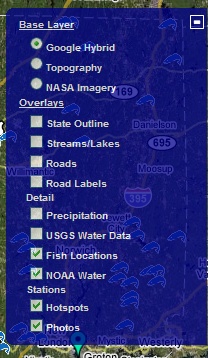
In the upper right corner of the map, is the layer list. If the layer list is not visible, simply click the + sign in the upper right corner of the map to expand it.
The layer list allows you to turn different "layers" on or off. For example, if you are interested in looking at topography, you can click on the radio button for "Topography" in the layer list. The map will automatically refresh and change to the layer selected.
Some layers that are available to view include satellite imagery, topography, roads, real-time precipitation, USGS water level data, fishing locations, user photos and hotspots.
Note: Photos and Hotspots are only visible if you have loaded a user trip onto the map.
Slider Bar & Location Information
In the upper left corner is the slider bar and pan buttons. On the slider bar, you can click either the + button to zoom in, or the - button to zoom out. You can also click and drag the slide bar up or down to zoom in or out.
Above the slider bar, you will see the pan control. This allows you to move North, South, East and West. Simply click on the arrow in the direction you want to move, and the map will move in that direction.
Scale & Longitude/Latitude Information
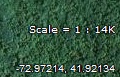
If you look closely in the lower right corner of the map, you will see both the scale of the map and the longitude/latitude (in decimal degrees) of wherever your mouse is positioned. If you have a handheld GPS unit, this information can be very useful to finding exact fishing spots.
Tackle Box
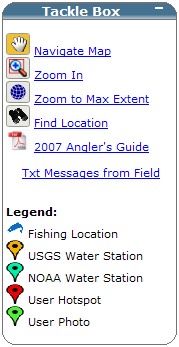
Next to the map, you can find additional tools in our "Tackle Box". Below is a list of available tools in the tackle box.
Navigate Map:
The navigate map tool allows you to pan around on the map. Once you select this tool, simply click and hold the left mouse button down on the map and drag. The map will begin to move as you drag the mouse. When you want to stop moving, just let go of the left mouse button.
Zoom In:
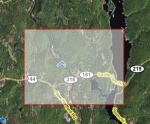
To zoom in, first select the tool from the tackle box. Next, click and drag a box around the location you want to zoom in to. The map will zoom to that location. Note: You can also use the zoom in tool any time by holding down the shift key and dragging the mouse.
Zoom Out:
Press this button to zoom you out one zoom level from your current view. This is the same as pressing the zoom out button on the slider bar or dragging the slider down one level.
Zoom to Max Extent:
This will zoom the map out to the full view of the state. You can think of this tool as a reset button.
Find Location
This tool allows you to search for and zoom to predefined lakes, rivers and streams on the map. You can also search for a specific address or latitude/longitude to zoom to. This is very useful if you know the exact location of where you want to fish, such as the coordinates from a recent boating trip, and want to plot it on the map.
2007 Angler's Guide:
This will popup the 2007 LA Anglers Guide from the DEP. This contains a lot of information on fishing regulations, creel limits, etc.
Txt Messages from the Field:
This will popup a list of TXT or PIX messages our users have sent us using their mobile phones. This is very useful, because our users can send reports in real time from their mobile phones to our website. If you are interested in sending any TXT or PIX messages to us while you are out fishing, simply send the message to "text@lafishfinder.com" using your mobile phone. Below is an example of how to send a message:
1. First on your mobile phone select "New TXT Message" or "New PIX Message". Exact verbage may vary per phone.
2. In the "To" field enter: text@lafishfinder.com (This is where you would normally enter a phone number, but in our case you need to enter this email address)
3. Enter a message of 160 characters or less in the body of the TXT message. If you are sending a PIX message, add your photo now.
4. Send your message. Users on our website will instantly see your post and know fishing conditions around the state.
Legend:
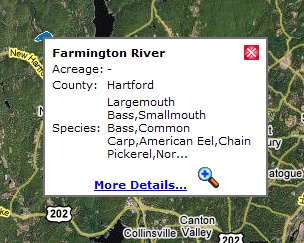
The legend shows you what different symbols on the map represent. You are able to click each symbol on the map to view more information on that location. The image to the right shows you what happens when you click on a fish icon.
Trip statistics are calculated based on the trips you create. You must have at least one trip with a "Fishing Hotspot" plotted in order to view trip statistics. The statistics are calculated based on all of the hotspots plotted, the number of fish caught at each hotspot, their weight/length, and the date of each trip. In addition, a list of each species of fish and the number that you have caught so far are shown. A "View Details" button will also appear next to any species of fish that you have caught to allow you to drill down to specific details on that species. The statistics provide a great way to keep track of all the fish you catch and track your improvements month-to-month and season-to-season.
LAFishFinder.com is a participant in the Amazon Services LLC Associates Program, an affiliate advertising program designed to provide a means for sites to earn advertising fees by advertising and linking to Amazon.com.